Interactive Member Graphic

The member graphic on the screen is interactive. The wheel on the mouse will zoom the graphic in and out. Depressing the wheel will allow panning of the image. Additional interactions are listed below.

Hovering over the end will display two selection items.
Size: clicking on this item will allow the user to change
Plies: clicking here will display a list of available ply settings
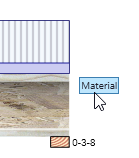
Move the mouse past the right end of the member and a selection button will appear. This allows editing of the joist/beam material.
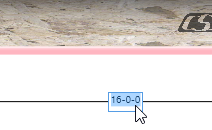
Click on the member length and type in the new length
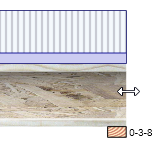
Hover over the end of the member and click the mouse to drag the end of the beam/joist to change the length.
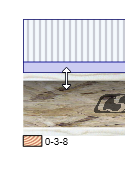
Hover over top of the member and click the mouse to drag the top of the beam/joist to change the depth.
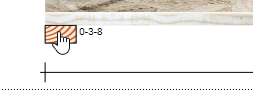
Hover over a bearing and click to drag the bearing left/right to create cantilevers.
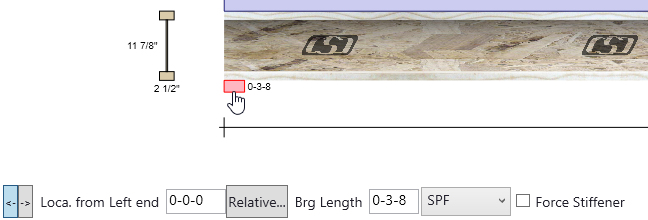
Click on a bearing (below) and the bearing's properties are displayed below the member. Users can set bearing length or bearing type. Types include various lumbers/ewps/columns and hangers. Users can also set whether the system automatically calls out web stiffeners.
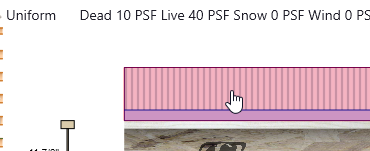
Hovering over the load graphic will display the load type/magnitude above the graphic. Clicking on the load will select/highlight the load in the loads section of the screen.